
My Random Fantasy Generators

"Sherder Dranor [commission]"by ThemeFinland (resized) is licensed under CC BY-NC-ND 3.0
You never know when you'll have to come up with names, characters, or places quickly for a fantasy story or game. That's where my generators come in! But they're not just scattered across my site - you can find all of them below!
My older generators are available to download and use at RPG ChartMaker; you can learn more about the site below. For newer and revamped generators, you can roll up results right inside my pages. More options have been made available due to generous readers offering their skills and time, for which I must thank them again!
If you use them and have constructive feedback - or if you use them for a project - I'd love to hear about it!
How to Use RPG ChartMaker
Quick Directions
Download the .json file for a generator by right clicking the link and selecting "Save link as."
Visit the RPG ChartMaker site.
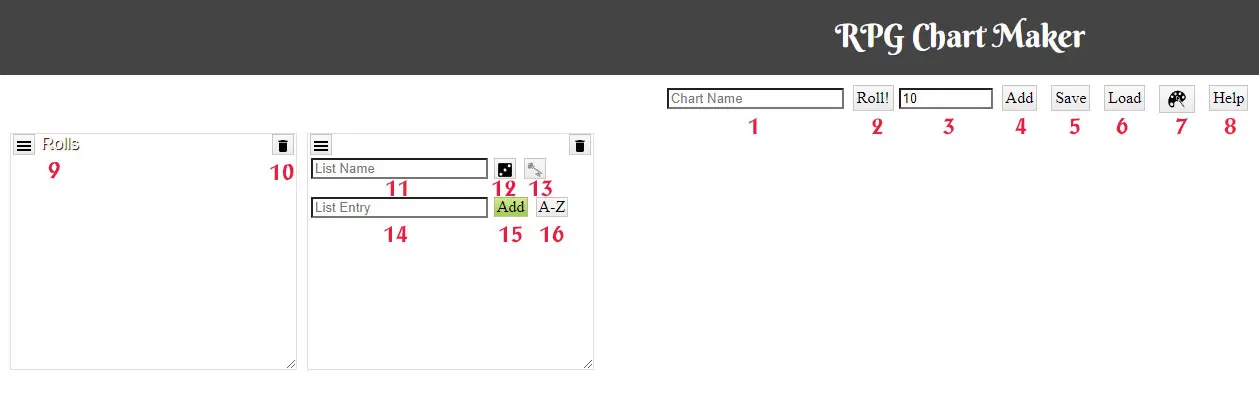
Use the Load button (#6 in the image below) in the toolbar to load a .json file.
There will be 10 results by default (#10); replace with another number, as desired.
If there's a list you don't want to include in the results, click the dice icon in that list (#12).
If a list is already "turned off," leave it that way.
Click the Roll! button (#2).
More Options
Add entries in any list by typing it in the List Entry box (#14).
You can copy and paste a list with multiple entries.
Alphabetize entries in a list by using the A-Z button (#16).
Edit an entry by clicking on it; save your change by hitting Enter or the plus button.
Click on any entry in a list and click the minus icon to delete it.
Add a new list by clicking the Add button in the toolbar (#4).
Delete a list by using the trash can icon inside it (#10).
Click the key button in a list to get unique rolls from that list (#13).
You need a roll table (#9) to see your results, so don't delete it.
Change the fonts and colors by using the palette button in the toolbar (#7).
Pick a template and adjust values in the Customize menu.
Save changes by using the Save button in the toolbar (#5).